
Yes! There are a number of templates that you can choose from whenever you create a new board in your account. Just follow the steps below to access them 😊
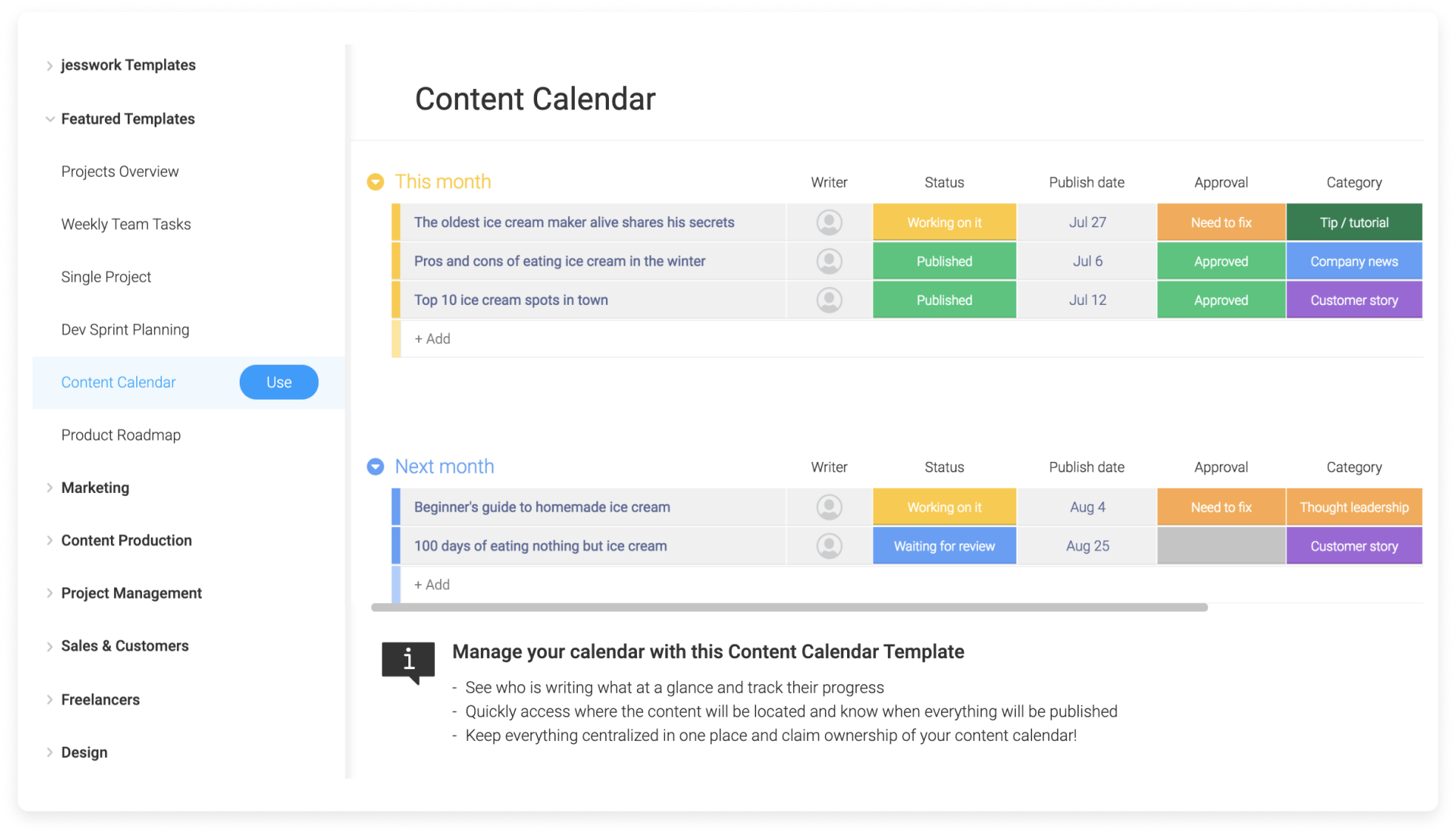
Create a board from a template
Step 1
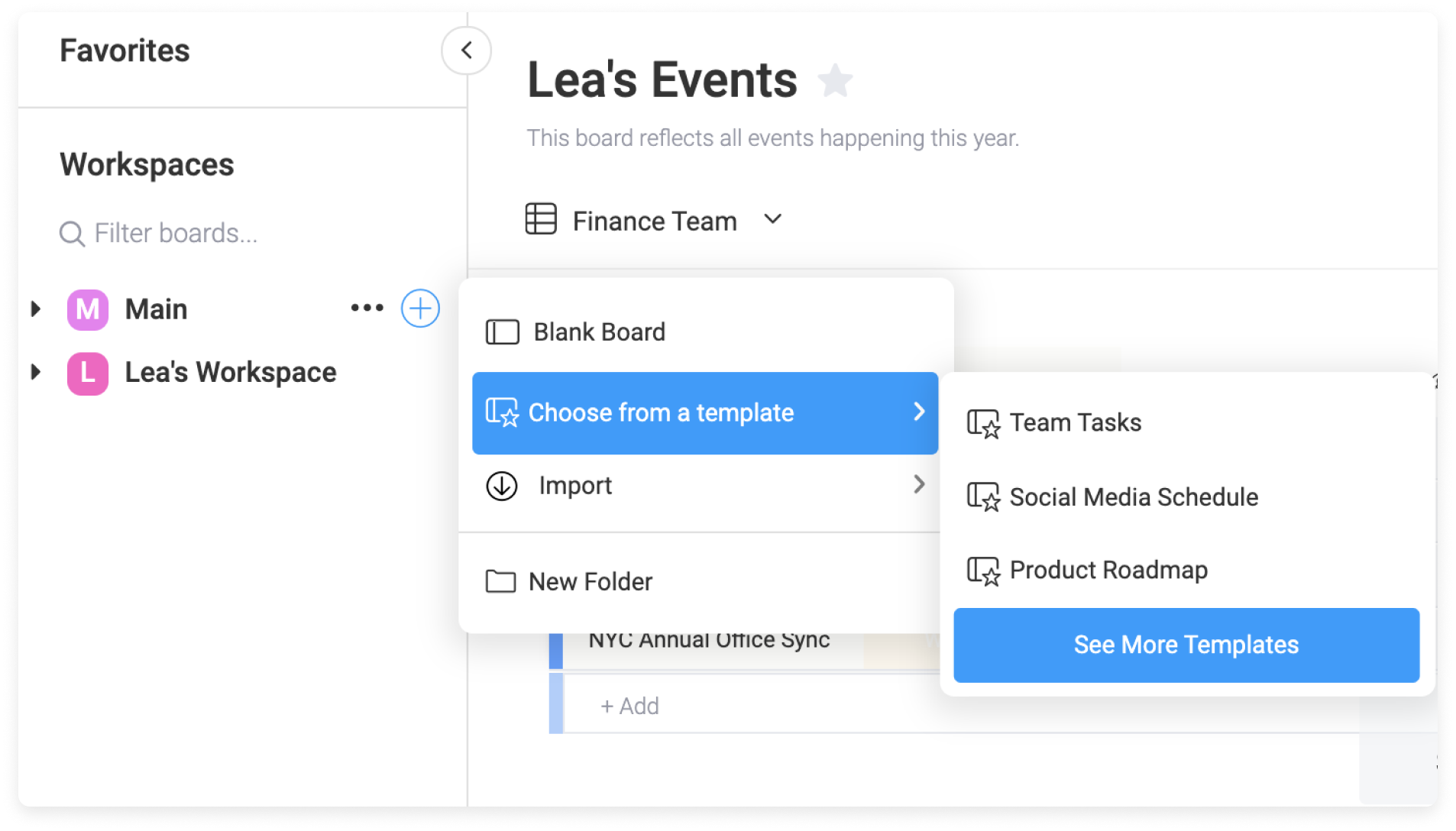
Click on the + icon as in the screenshot below and select "choose from a template"

Step 2
The top 3 favorites templates will appear. You can click on "see more" to see the full list of available templates.
Step 3
Click "Use" to apply it to your new board.
Once done, start customizing! You can then easily edit the name of your items, groups and columns according to your needs.
Create your own board template

You can now utilize your own boards as templates for your account in just a few clicks.
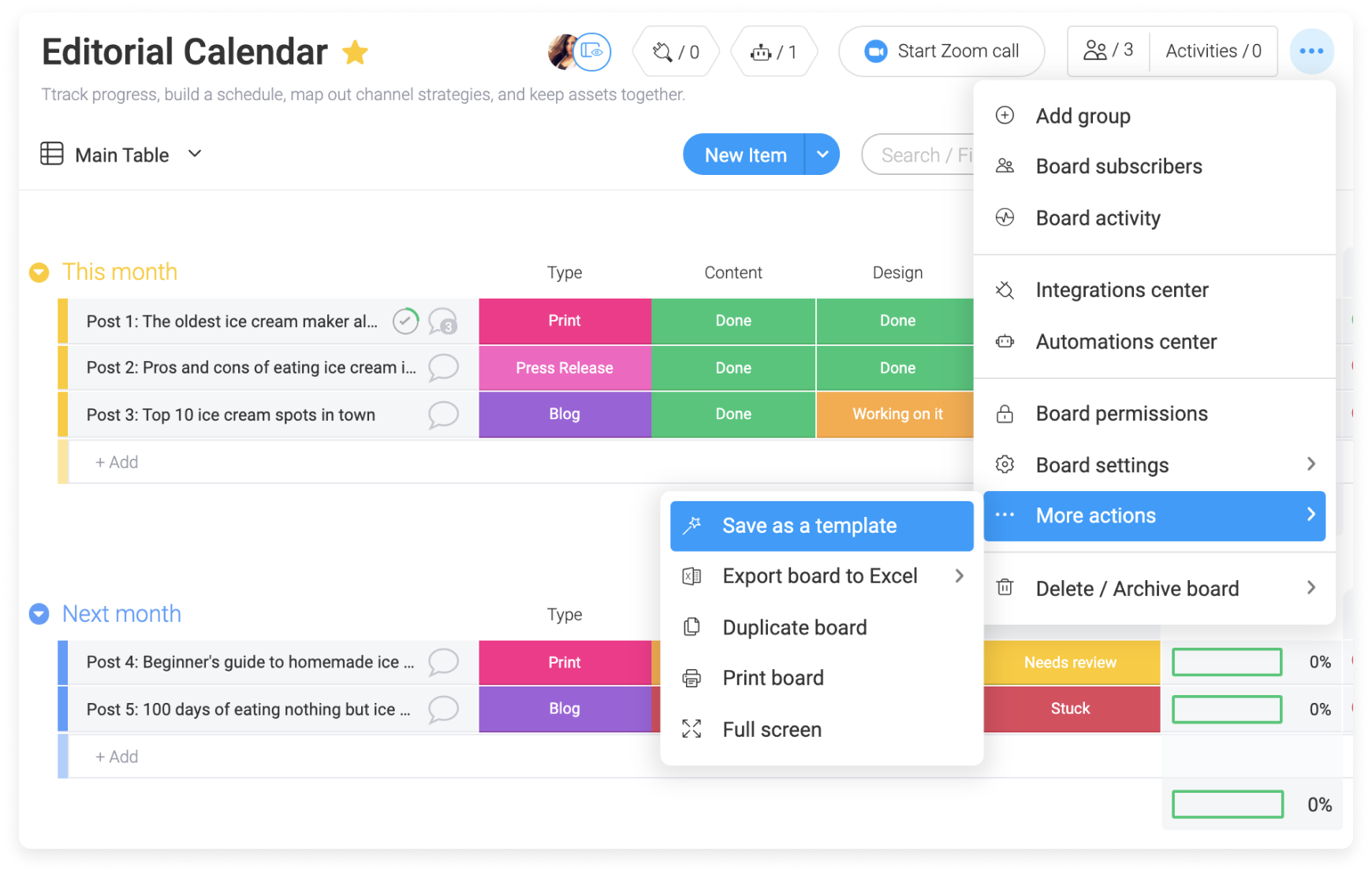
On the main board you'd like to use as a template, click the three dots menu and select "more actions" and then "save as template".
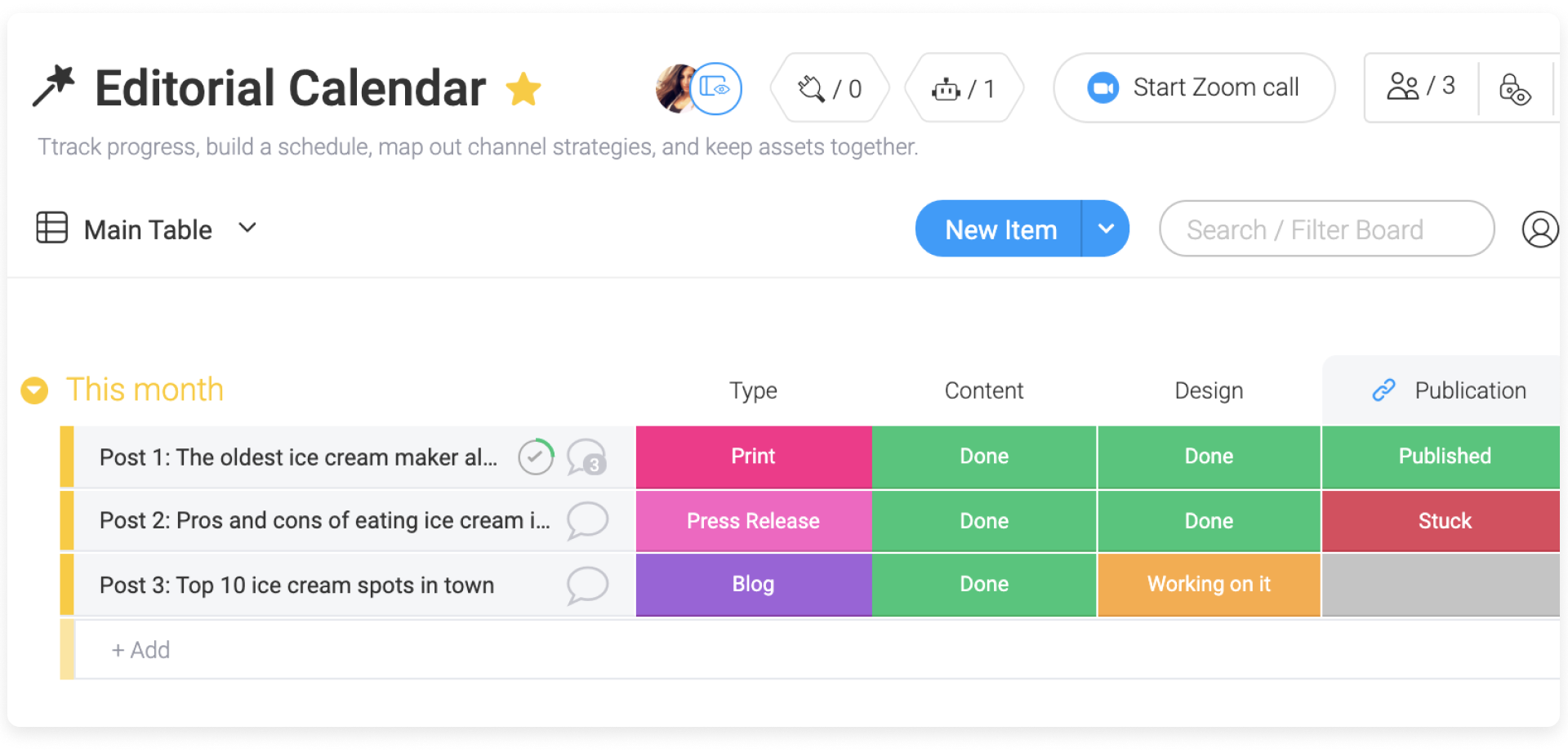
Once done, you will see a wand indicating that your board is a template. ⭐️
If you are editing the board, deleting it or archiving it, keep in mind that this will affect the template as well. Only board owners will be able to change the template. The other users can utilize it but won't be able to change its structure or content.
Custom templates, automations, and integrations
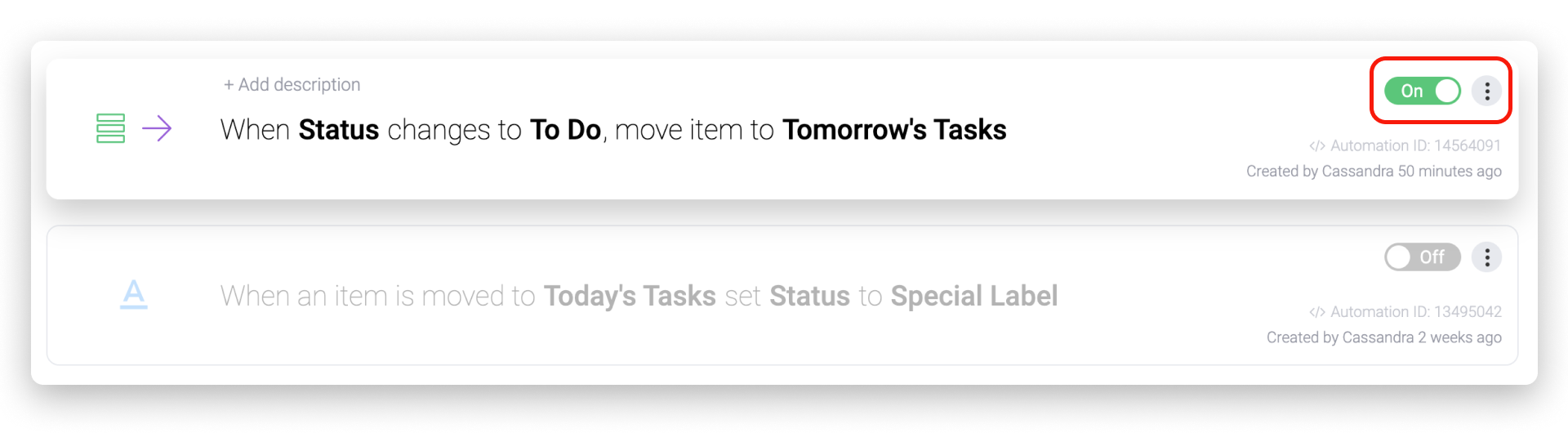
- Cross-board automation recipes. These will not carry over.
Access your customized templates
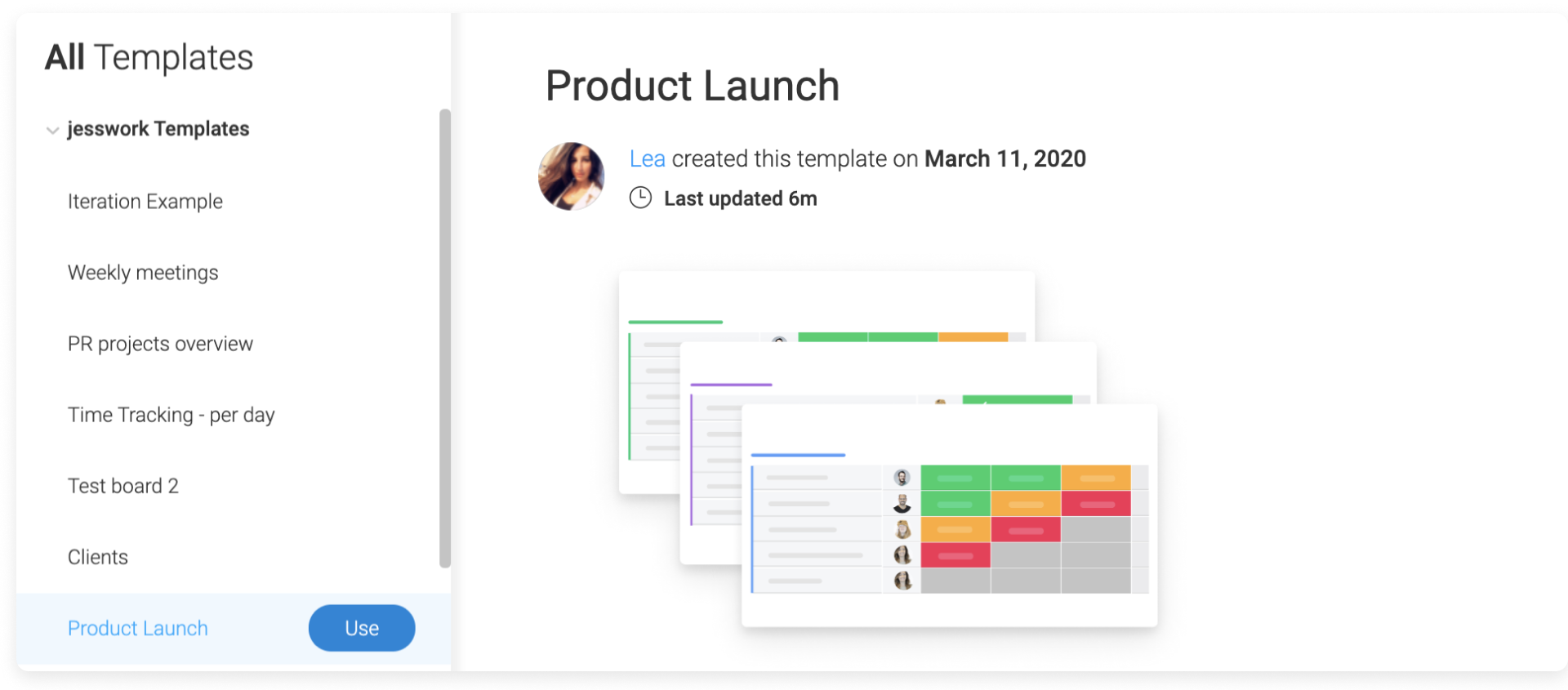
Select the template of your choice by clicking on use and you are done!
Removing a board from the template list
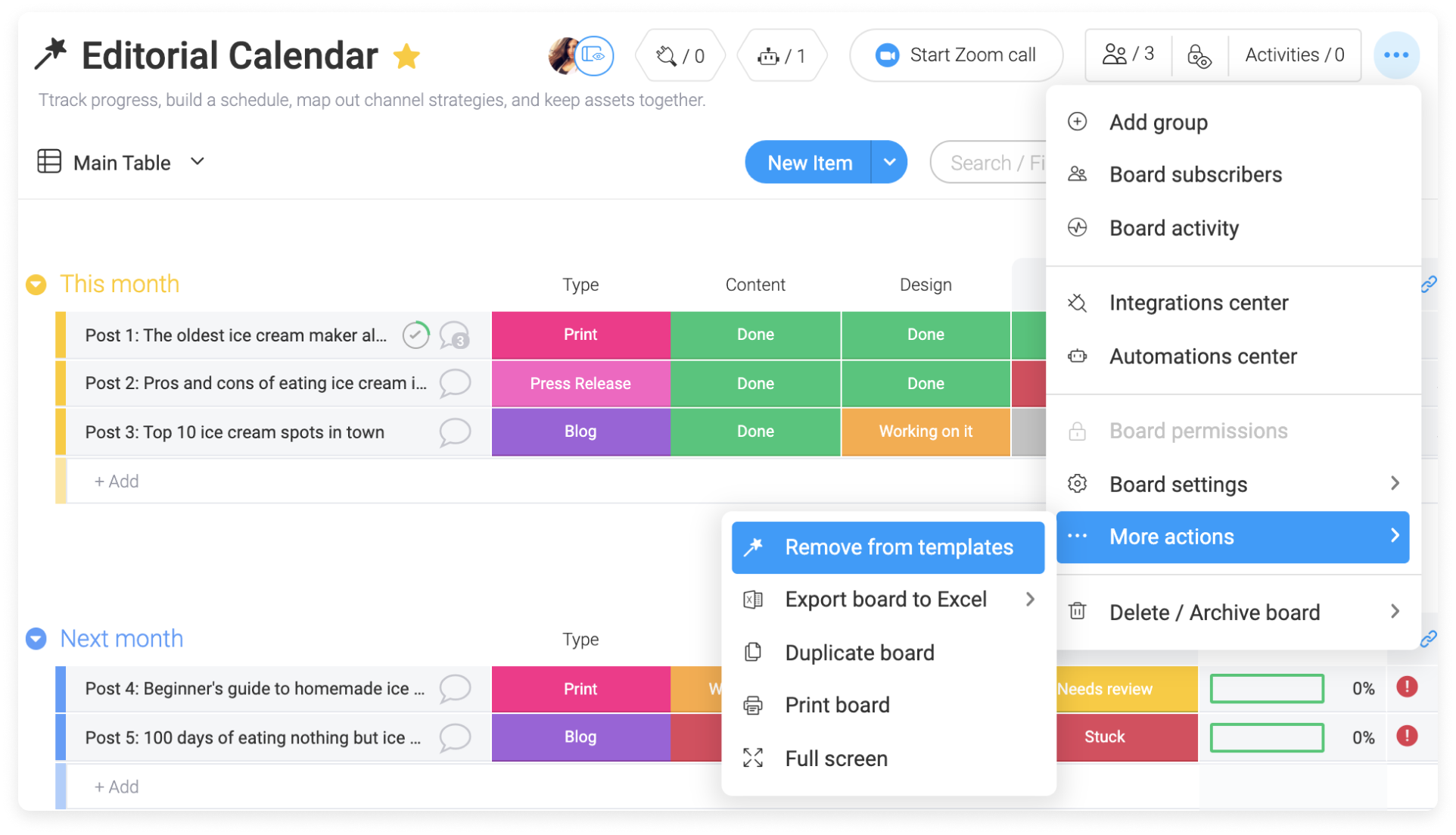
To remove a board from your template list, click on the hamburger menu (the three little bars) located on the right of your board. From there, select more actions, and then click on "remove from templates."
Create a column template
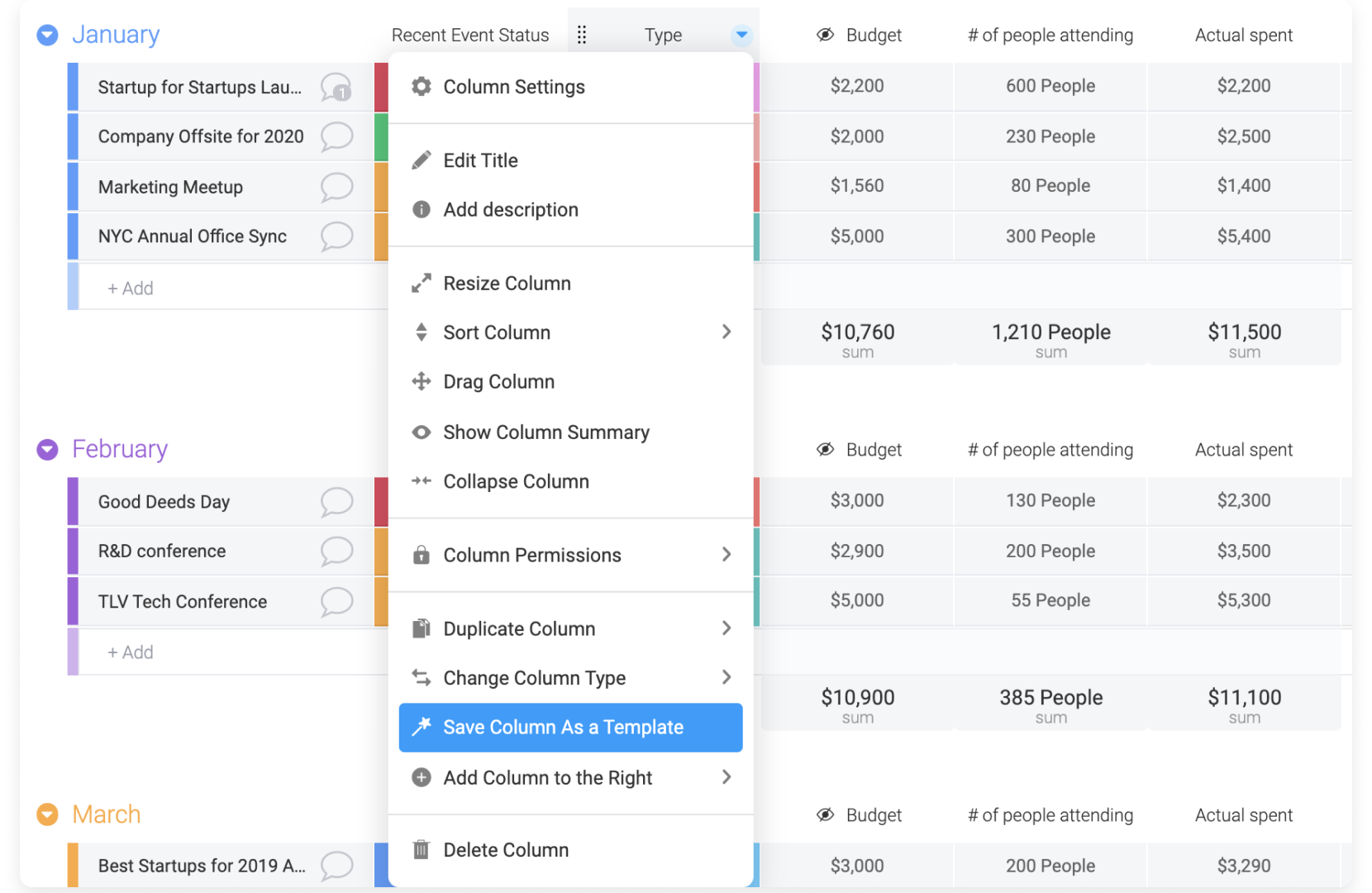
You can add specific columns of your board as template. Let's say we are managing an event company. We are using a status column with many different labels for each type of event:
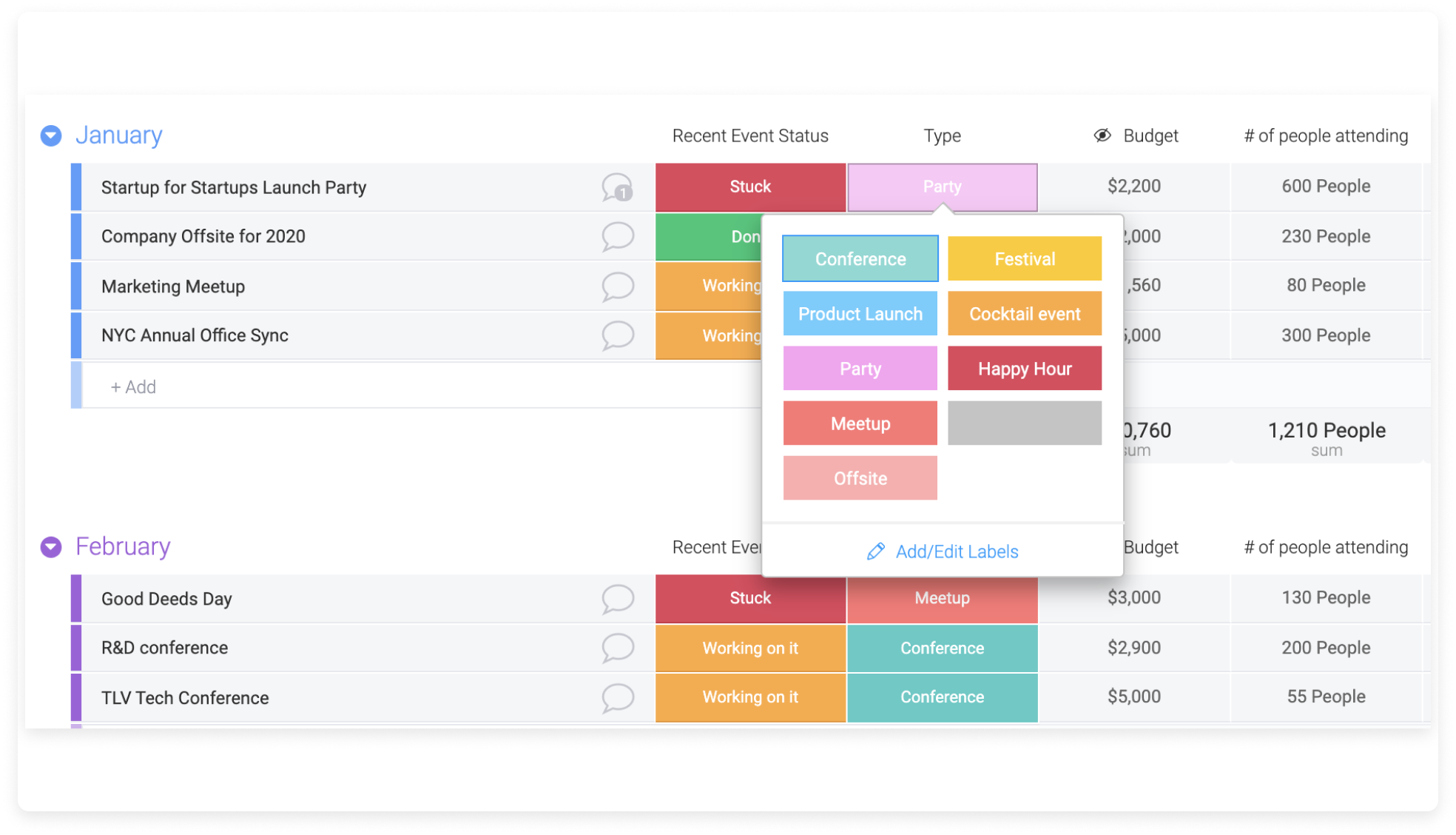
To save a column as a template, click on the arrow located on the right of the column's title and select "save column as a template".
Next, name your column and add a description:
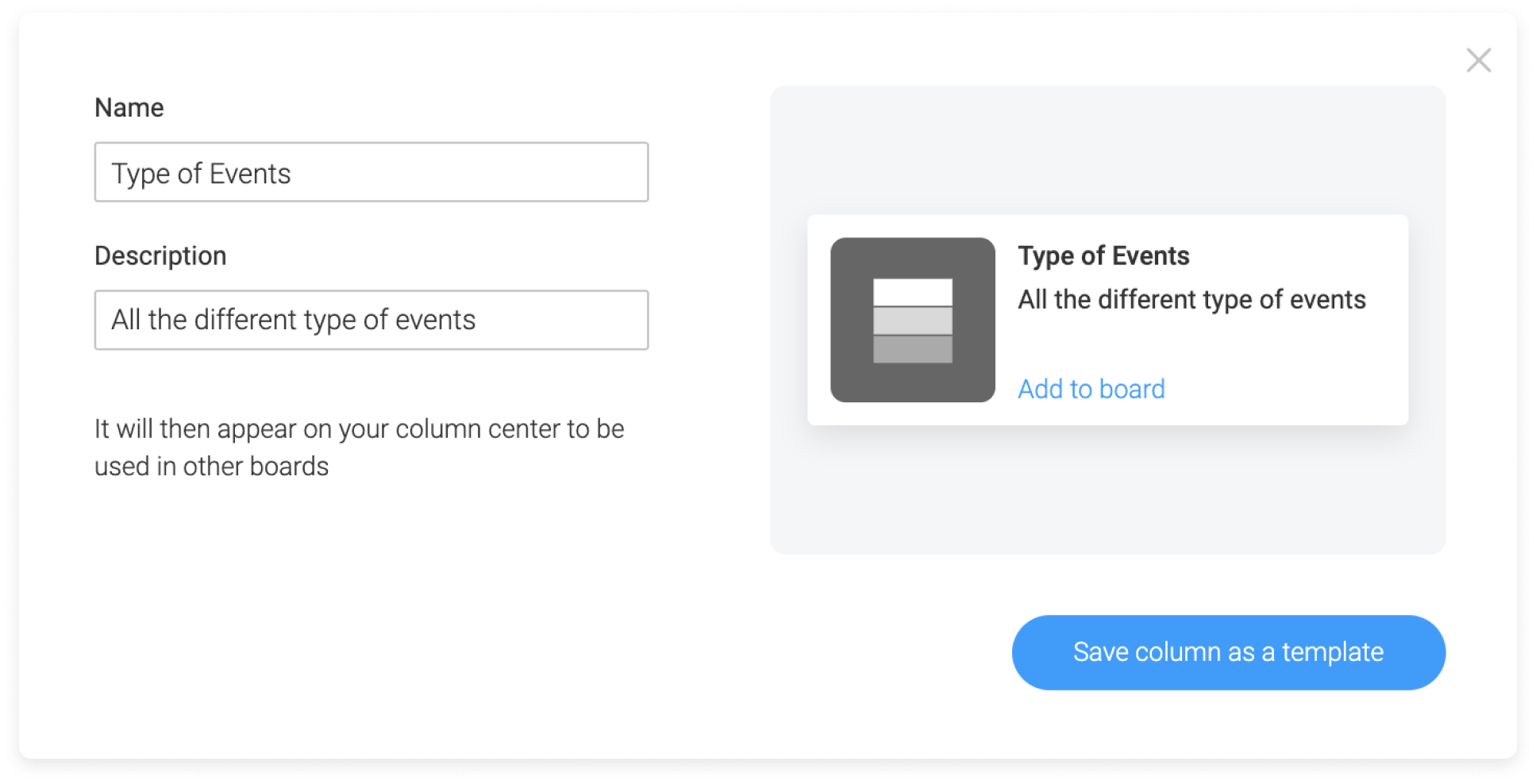
Once done, save the column as a template. You will then be able to find your column in the column center and add it to any of your boards!
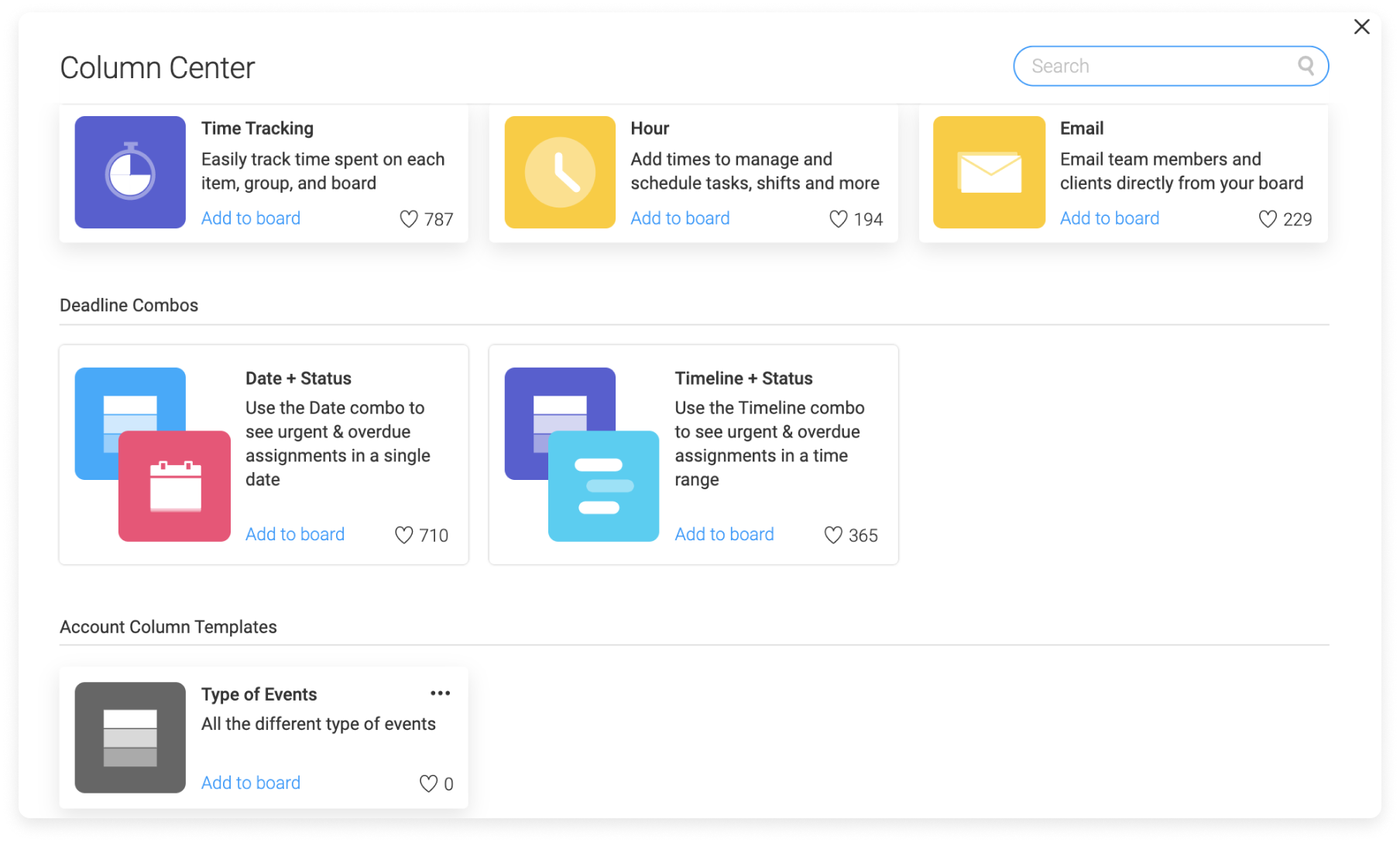
This is so useful if you have a column with many different labels or dropdown choices!
Use a template on your mobile app
Templates are not only for your browser or desktop app - now you can use board templates right from your mobile app!
First, click the blue '+' icon at the bottom right corner of your screen as you would to create a new board:

Now, you can choose from any of our prepared templates, or create your own! Swipe through the templates to see what types of boards you can create!

If you have any further questions please feel free to reach out to us at support@monday.com. We are available 24/7.
Comments
0 comments
Please sign in to leave a comment.