
Subitems provides your items on your board with a deeper structure. You can use them to better support your workflow or enable more complex workflows on a single board.
Utilizing subitems will give you the low-level item detail that you are looking for when breaking down your work for a more granular view.
How to create subitems
You can create subitems from any of the following locations:
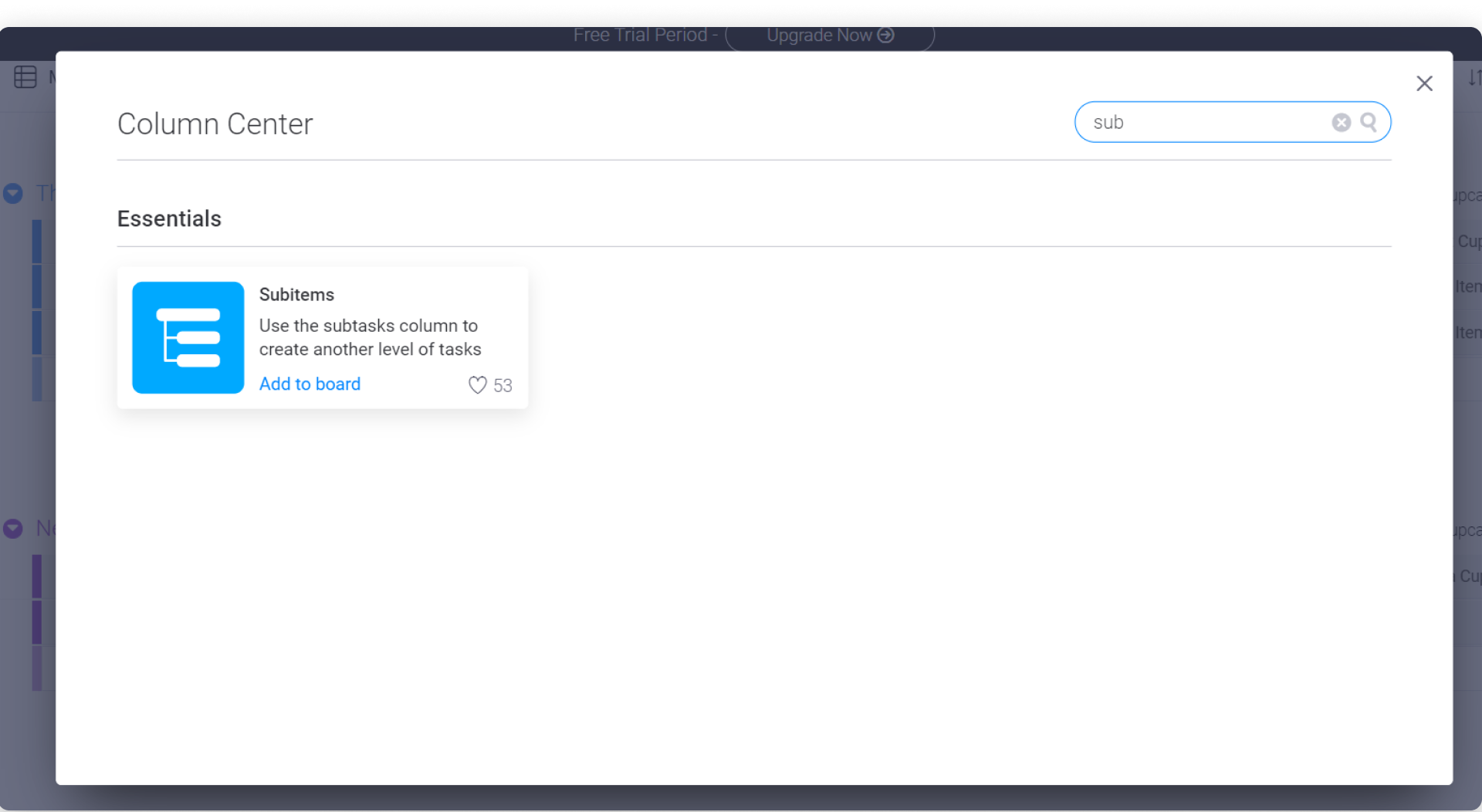
1. Add it from the column center:
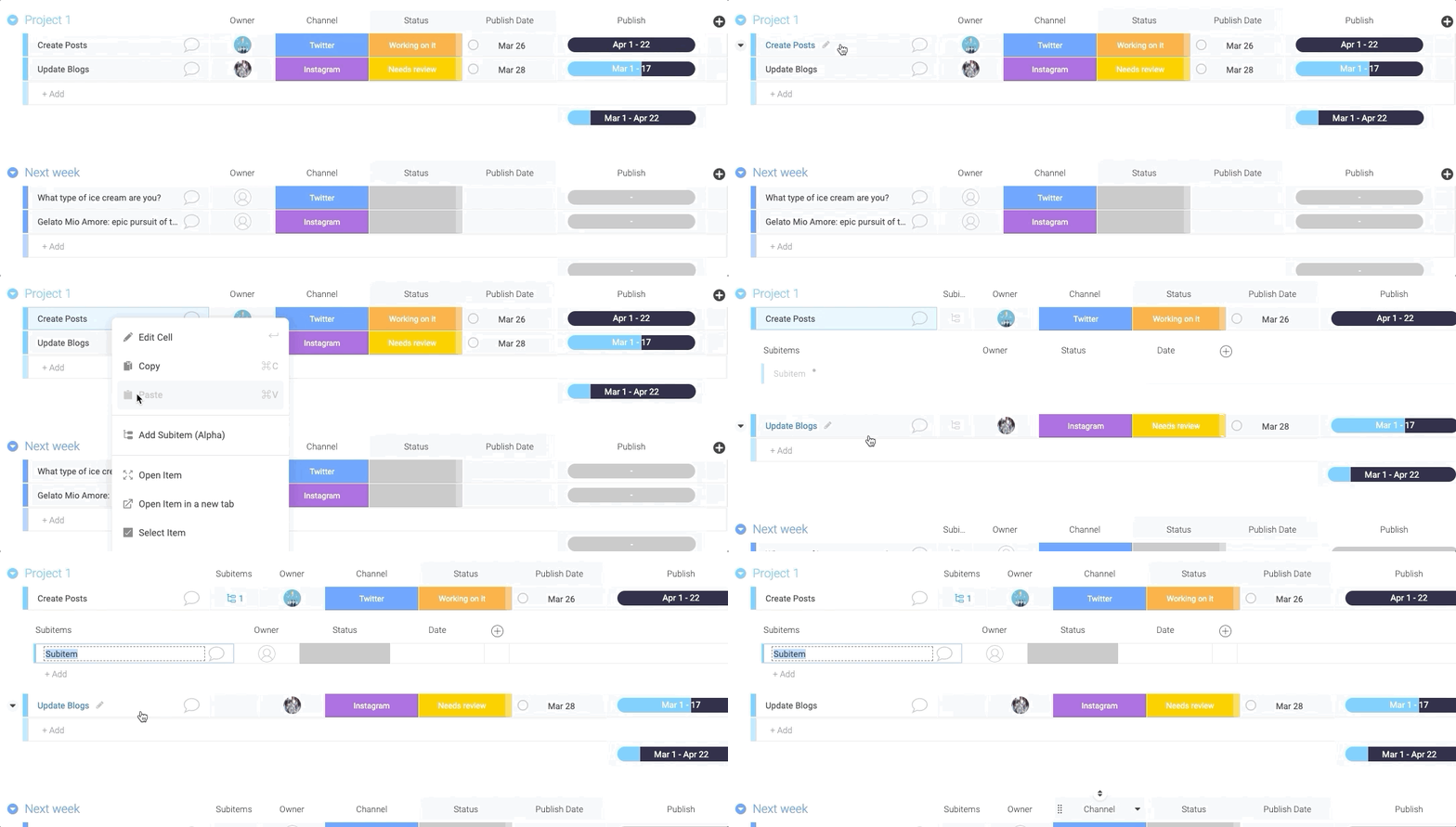
2. Right-click on the item name:
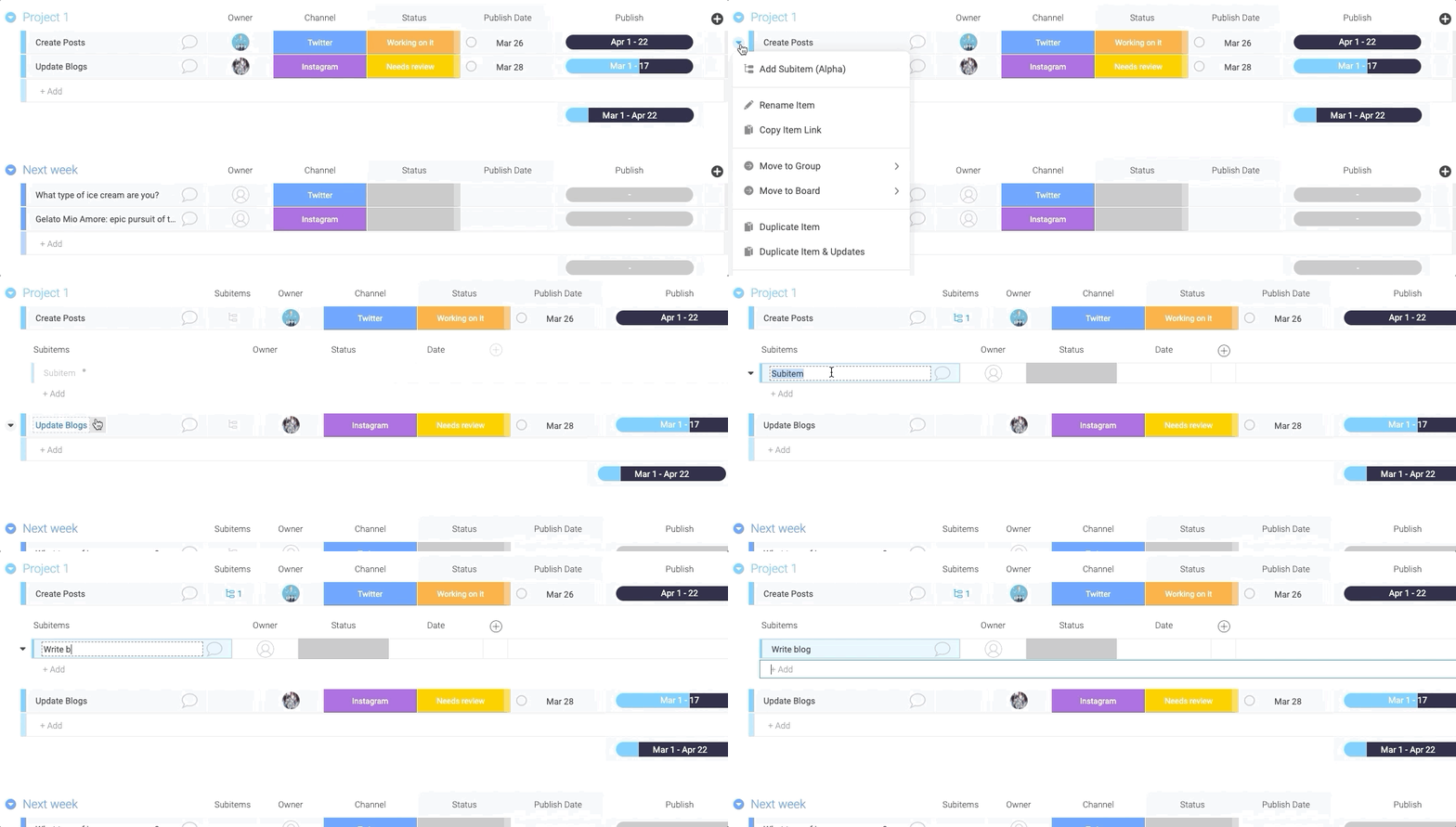
3. The item's dropdown menu:
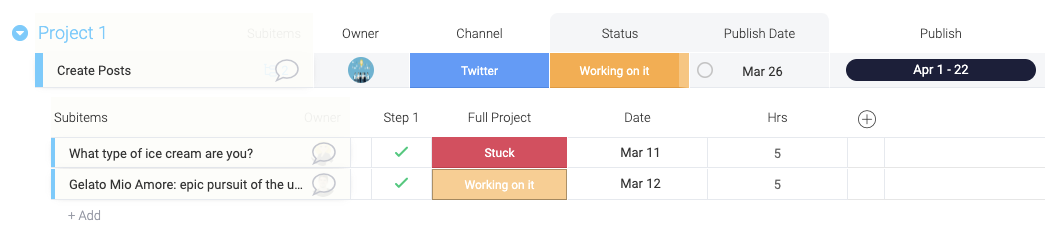
What columns you can add to subitems
You have the ability to add all of the columns from the column center to your subitems.

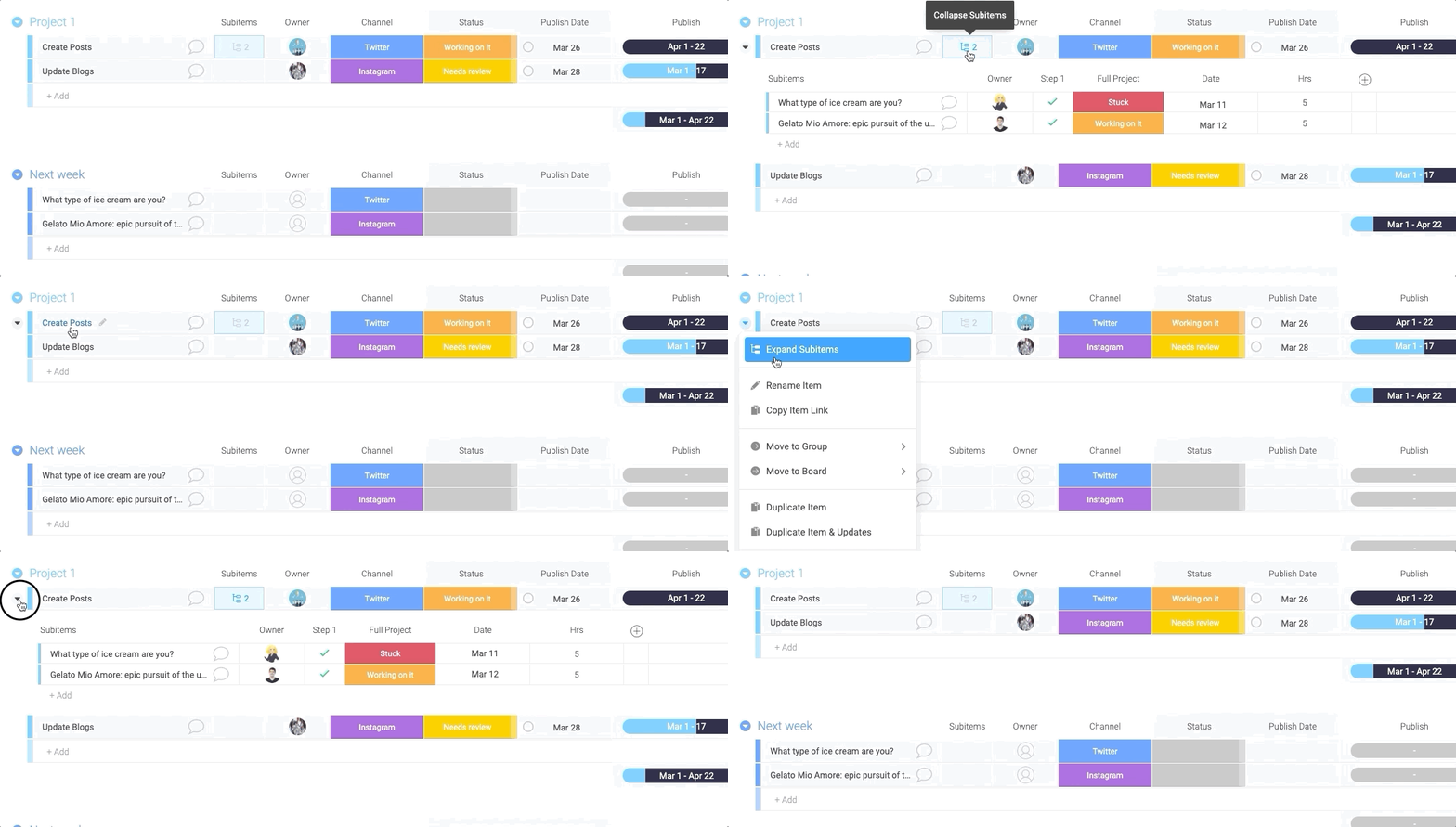
How to expand and collapse subitems
You can expand and collapse your subitems in two different ways:
- You can either click on the subitem icon in the subitem column
- Or you can use the right-click menu of the specific item.
Duplicating subitems
When duplicating an item or a group or board of items that contains subitems, the subitems will also duplicate. 🙌
Getting a visual overview of subitems columns
If you’d like to see the aggregated data of your subitems on the parent item, you can mirror it using the rollup feature! In the subitems, open the desired column settings you want to reflect on parent item, and select "Show Summary on Parent Item":
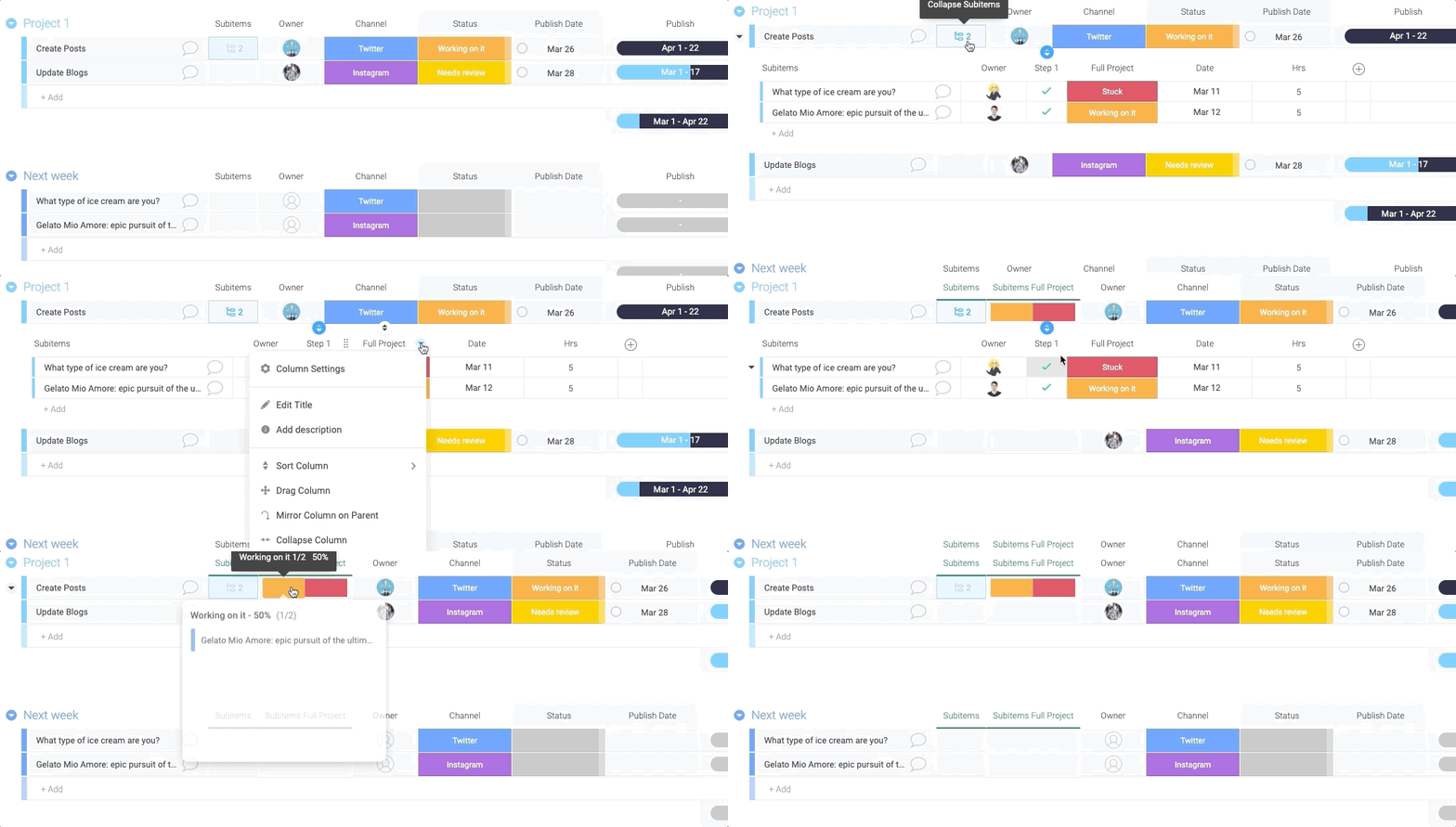
You can mirror different columns:

What’s next to come?
Subitems are in Beta, and we are continuously adding more features and ironing them out. These are some of the things we are working on:
- Moving subitems between boards or parent items that contain sub-items
- Full support on views and dashboards
- Full support on our mobile apps
Check out the full roadmap release plan here.
If you have any questions, feel free to contact us at support@monday.com, and our awesome support team will be more than happy to help you with this!
Comments
0 comments
Please sign in to leave a comment.