
There are a few places on your board where you can add files. On your mobile app, you can add files and images in the Updates Section and within the File Column. They're each used for different purposes, and really easy to do from your mobile device! Let's check them both out!

Adding a file in the Updates Section
You can add files and images to your conversations with teammates within the Updates Section of each item! To reach the Updates Section, click the speech bubble beside the item's name, like this:
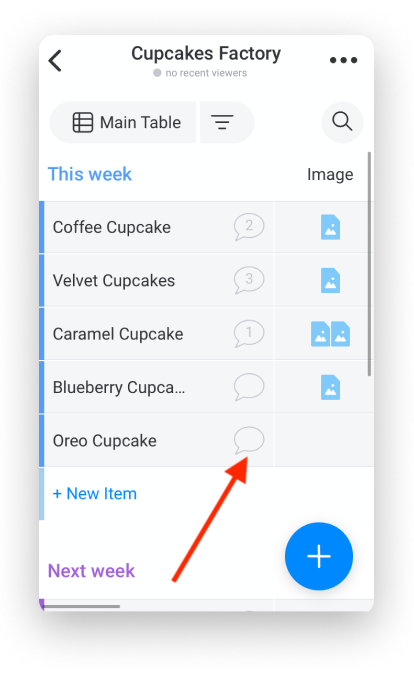
Once inside the item's Updates Section, you can type a message and choose between three different types of attachments; live photo, saved image, or saved file. Let's take a look at how we can add each of these types of attachments.
- Take a photo
If you click the camera icon within your Updates Section, you'll open up your mobile device's camera!
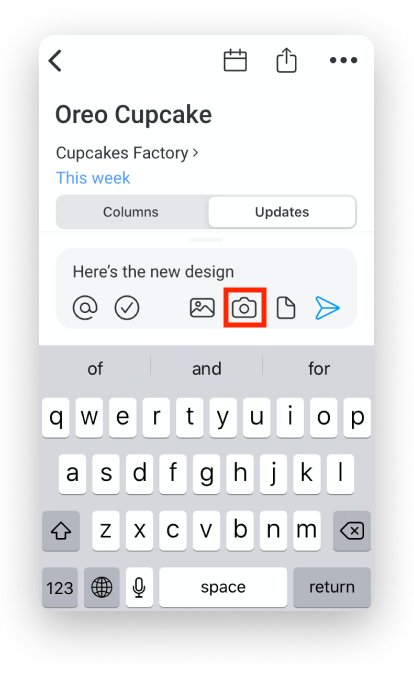
Once your camera is open, you can snap a shot right from your mobile device! Just click the blue circle to take a picture to accompany your update! This is great if you're working in the field and want to share what you see with your team!

- Photo gallery
If you want to upload an image you have saved to your mobile device, you can click the photo icon to open your photo gallery!
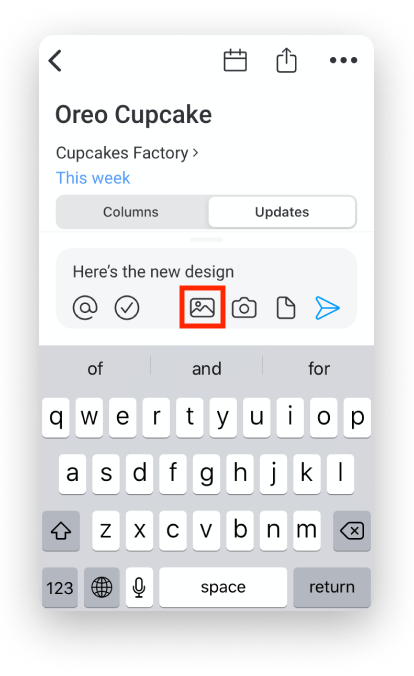
Browse through your mobile device's photo gallery to select an image. You can even click the square icon on the right side of your screen to select multiple images to upload at once!

- Files
Click on the file icon to upload a file that has been saved to your mobile device!
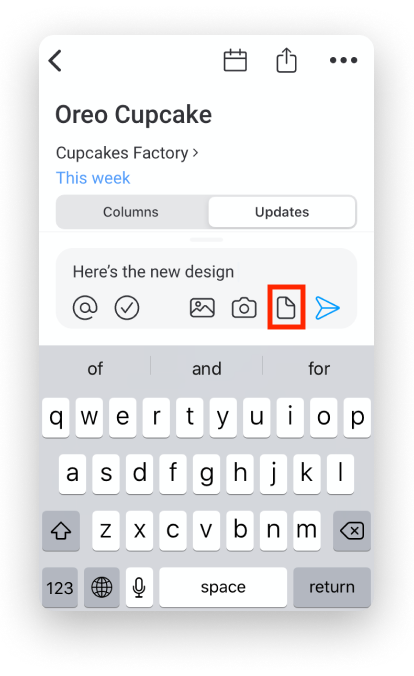
Clicking the icon will open up a list of files saved to your device or your cloud! Browse through them and select the one you'd like to upload!
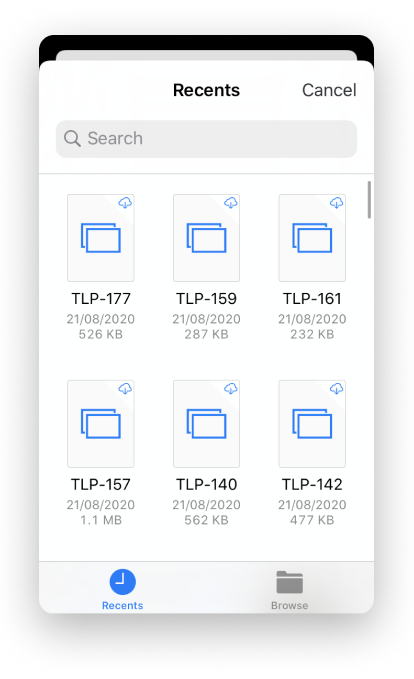
When you're done, click the blue "send" icon and check our your new update! Your team members can give it a thumbs up, reply, or add new updates below yours!
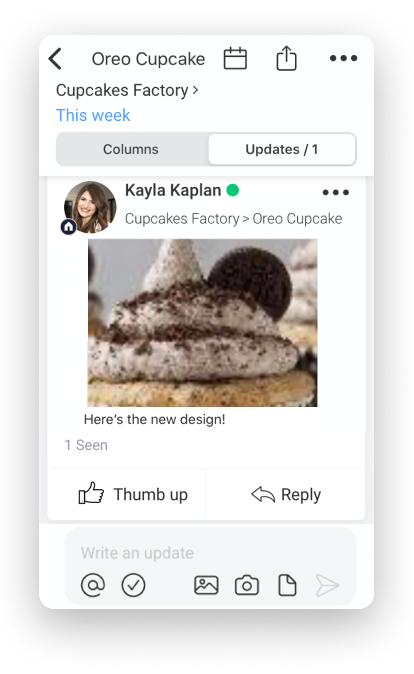
If you want to learn more about the Updates Section on your mobile app, you can read this article!
Adding a file in the File Column
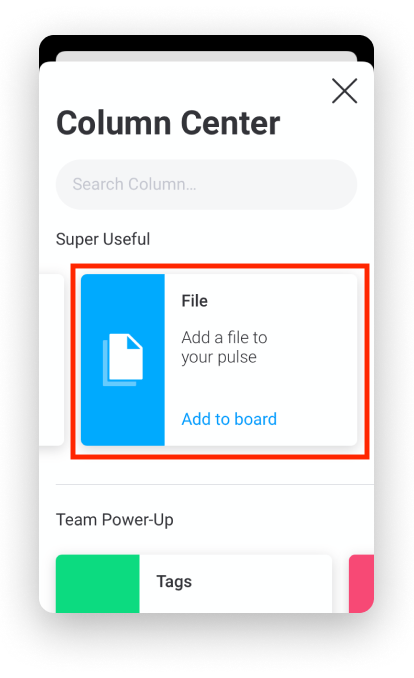
Start by adding the File Column from the Column Center.
Once your new column is added, you can tap on whichever cell you'd like to add a file to. When a pop-up window appears below, click "+ Add File".
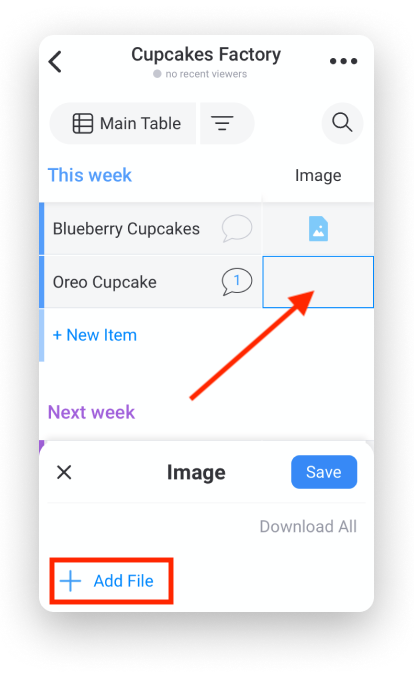
Next, you'll be given the option to select a file from your mobile device's files or photo gallery.
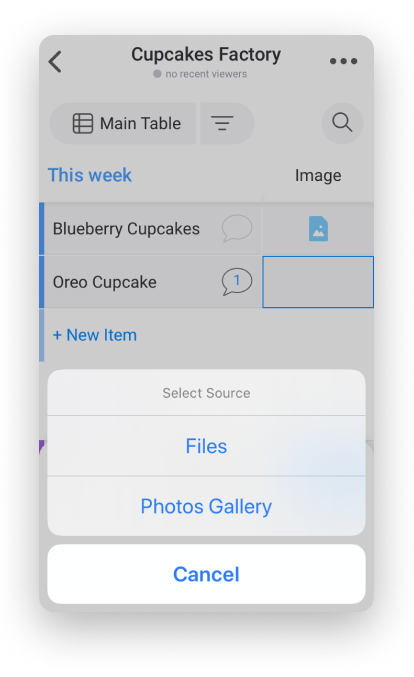
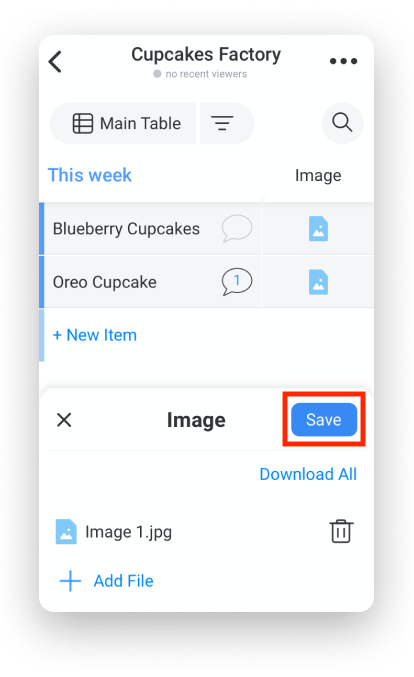
Once you choose a file or photo, just click "Save"!
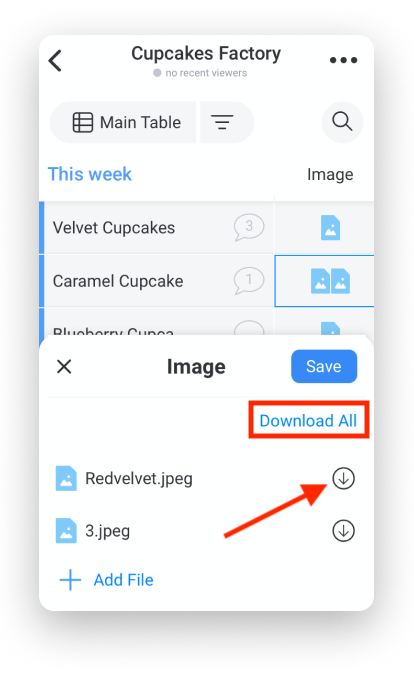
Download files
If you want to download files or images from the File Column, first click the cell containing the files. A window will pop up below containing a list of all files attached to the item. Click the 'download' icon to download one of the images, or select "Download All" to download all the files at once.
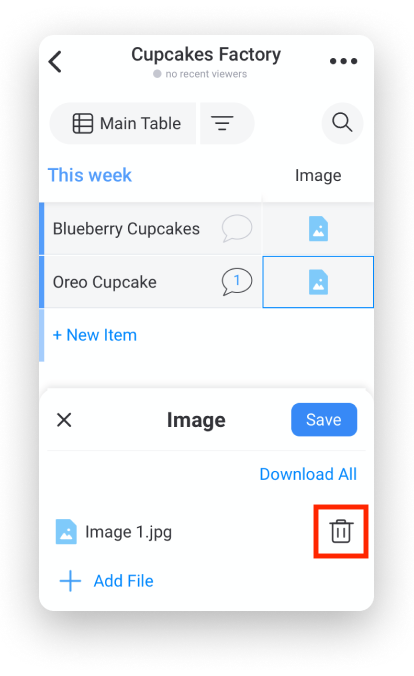
Delete a file
To delete a file from the File Column, just tap on the file you would like to remove and click on the trash can icon 🗑
If you have any questions, please don't hesitate to reach out to us at support@monday.com. We are here 24/7 and happy to help :)
Comments
0 comments
Please sign in to leave a comment.